Explore orders documentation.
Pages in this section
- Order History
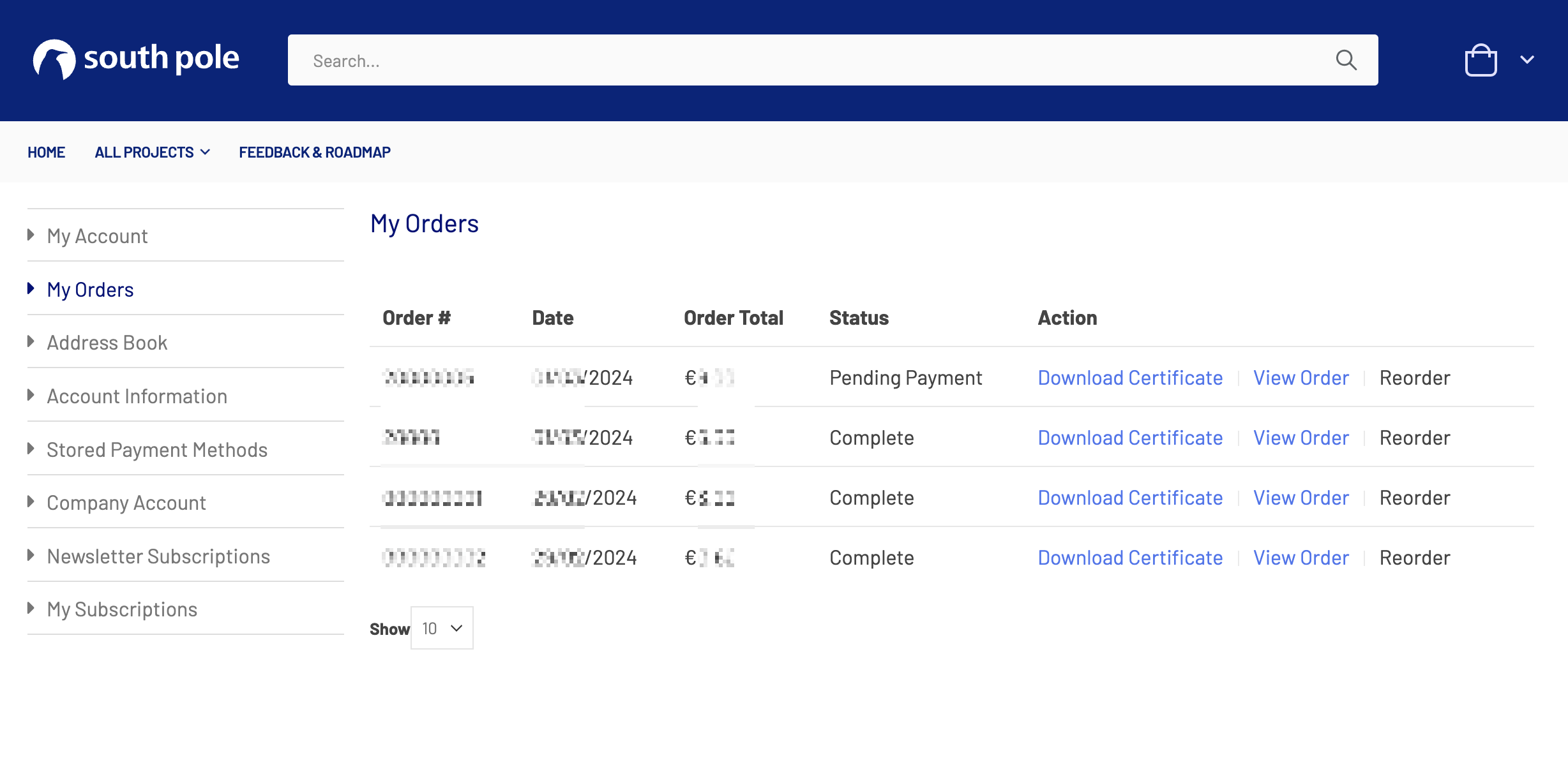
If you want to check your order history, download certificates, or view orders, don’t worry— it’s quite straightforward. Here’s a simple guide to help you navigate through these tasks.
- Log in to Your Account: Start by signing into your account. There’s a ‘Log In’ link at the top of the page.
- Access the Dashboard: Once logged in, you’ll be taken to your account dashboard. This is where you can find all your account information and activities.
- Find ‘My Orders’: Look for a link that says ‘My Orders’. It’s listed in the sidebar, or in the menu under your account options.
- Review Past Orders: Clicking on ‘My Orders’ will show you a list of all the orders you’ve placed. You can see the status, the date, the total amount, and other details here.
- Download Certificate: Click on the link or the button provided to download your certificate. It will be saved as a PDF.
- View a Specific Order: Click on the ‘View Order’ link to be taken to a page with all the specifics of that order, including items purchased, billing addresses, and payment method used.
- Order Status: At the top of the order details page, you can also see the current status of your order, such as ‘Pending’, ‘Processing’, or ‘Complete’. This is especially relevant if you paid by invoice.
- Viewing your purchase history
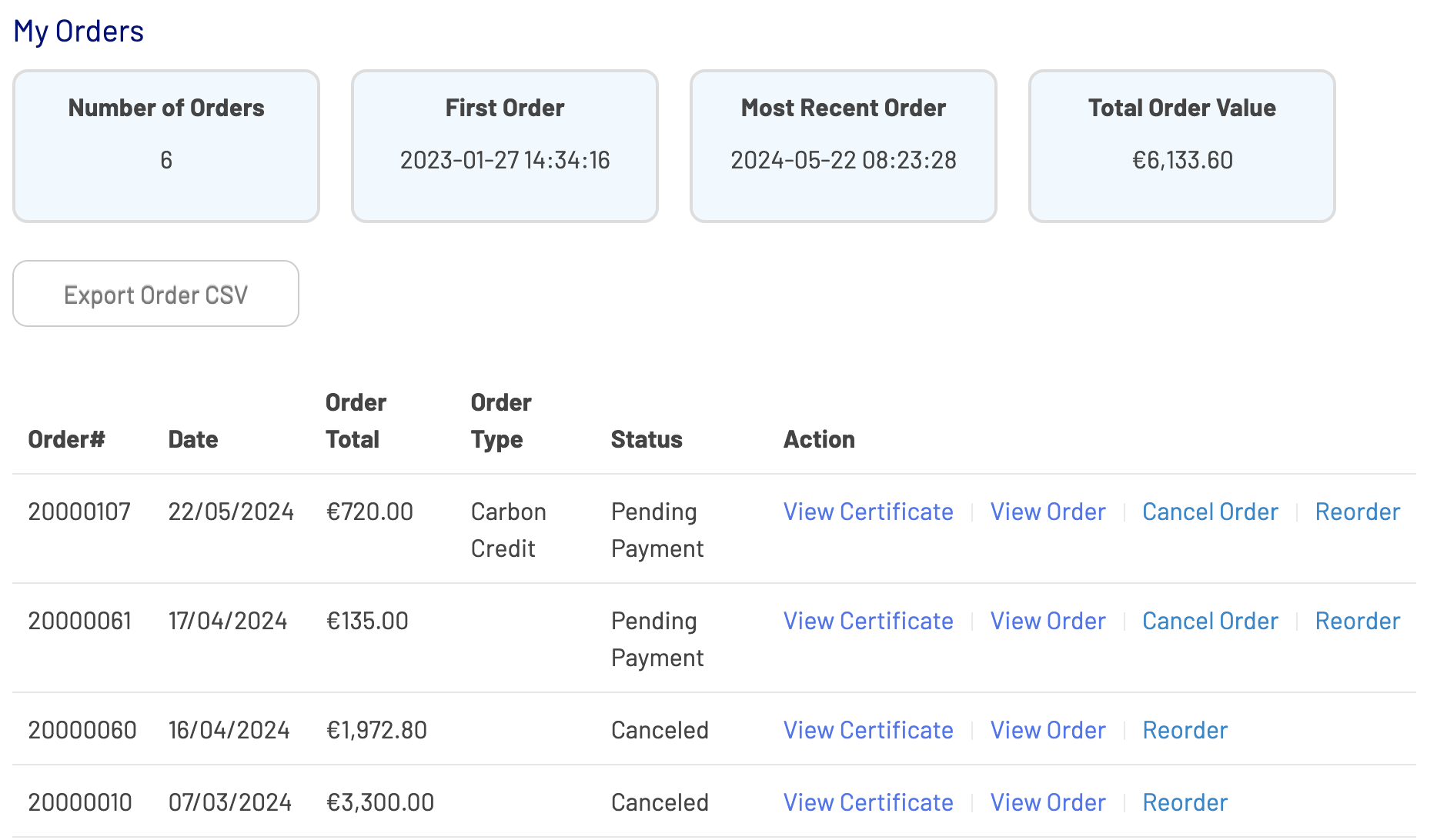
From the “My Orders” tab, you can see a list of all the purchased you have made in this Impact Store and aggregated data about it at the top of the page. You can download this data in .csv format by clicking on the “Export Order CSV” button.
You can also open a detailed view of each order by clicking on “View Order”, this includes: project information, total volume in tons of CO2 equivalent, total order value and currency, date the order was place and chosen payment method. You can re-download the climate action certificate that was sent to you at any point from this page.
- Modifying an order
Orders can be modified after having been placed in the cases where you notice a typo or wrong property/associate information somewhere on your invoice or certificate. This cannot be done in the shop directly, you will need to get in touch with us at techsupport@southpole.com.
Information you can modify
Here are all the fields we can adjust for you:
- Property billing address on the invoice
- Associate name on the invoice
- PO number on the invoice
- Notes on the invoice
- Property billing address on the certificate
- Notes on the certificate
- Cancelling an order
In order to cancel an order, you need to make sure 2 conditions are met:
- The order status is still pending - pending orders can be cancelled directly in the shop by yourself. If the payment has been received already, you can no longer cancel it yourself. You will need to get in touch with techsupport@southpole.com and explain why a paid order needs to be cancelled.
- The cancellation also happened in the MIR tool - your purchase history in the Impact Shop needs to be an exact reflection of the event calculation in the MIR tool. You cannot have an order in the shop that doesn’t exist in the MIR tool.
How to cancel an order
- Click on your name in the top banner of the site
- Select “My Account” to access account settings and purchase history
- In the menu on the left side of the screen, select “My Orders”
- A list of all your orders will display on the screen. Next to the ones with “Pending Payment” status, you have a button to “Cancel Order”, click on it
- A confirmation pop up will appear to ask if you are sure you want to cancel your order, click on “Yes”
- When you click on Yes, the pop up window will close and the page will reload. At the top of the screen is a new message on a green background telling you that your order has successfully been cancelled
- By email, you will receive a cancellation confirmation. The subject line is “Update to your South Pole Carbon Asset Management Ltd. order”. The email body contains the order ID and a prompt to either log in to your account or get in touch with South Pole techsupport