If you want to check your order history, download certificates, or view orders, don’t worry— it’s quite straightforward. Here’s a simple guide to help you navigate through these tasks.
- Log in to Your Account: Start by signing into your account. There’s a ‘Log In’ link at the top of the page.
- Access the Dashboard: Once logged in, you’ll be taken to your account dashboard. This is where you can find all your account information and activities.
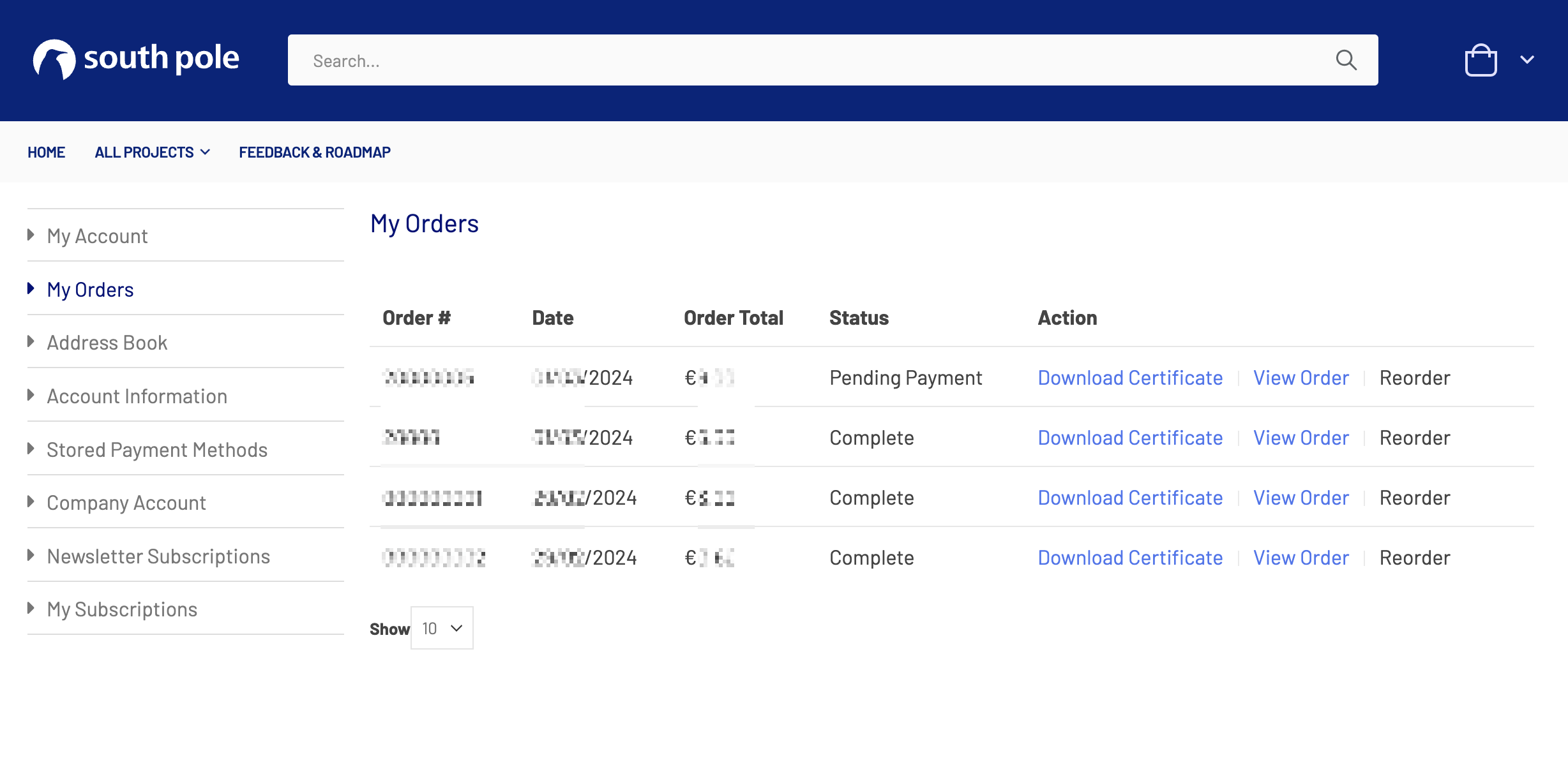
- Find ‘My Orders’: Look for a link that says ‘My Orders’. It’s listed in the sidebar, or in the menu under your account options.
- Review Past Orders: Clicking on ‘My Orders’ will show you a list of all the orders you’ve placed. You can see the status, the date, the total amount, and other details here.
- Download Certificate: Click on the link or the button provided to download your certificate. It will be saved as a PDF.
- View a Specific Order: Click on the ‘View Order’ link to be taken to a page with all the specifics of that order, including items purchased, billing addresses, and payment method used.
- Order Status: At the top of the order details page, you can also see the current status of your order, such as ‘Pending’, ‘Processing’, or ‘Complete’. This is especially relevant if you paid by invoice.